Carve Wood Wiki Carve Wood Controls and Hotkeys on Roblox
Full PC keyboard map, mobile touch UI walkthrough, Xbox controller bindings, and the keybinds top players rebind.
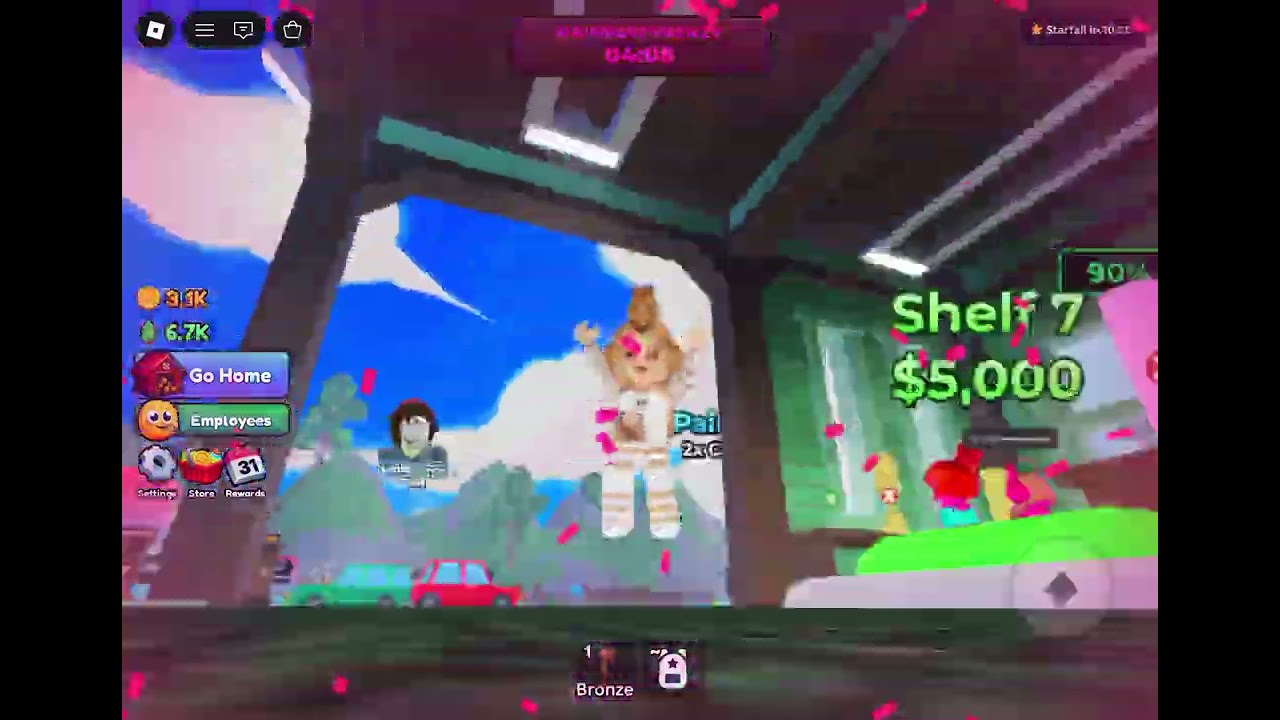
Carve Wood on Roblox runs on three input layers: PC keyboard and mouse, mobile touch, and Xbox controller. The default bindings cover 95% of play, but the last 5% — the rebinds top players use to shave seconds off the chop → carve → sell loop — is what separates a 500 cash-per-hour run from a 5,000 cash-per-hour run. This page covers every default binding, every supported rebind, and the input patterns the top-ranked players in Top richest players actually use.\n\n## PC keyboard and mouse default bindings\n\nThe PC default bindings cover chop, carve, sell, and the four HUD menu shortcuts. Every binding is remappable through the Settings panel on the main HUD.\n\n| Action | Default key | Notes |\n|--------|-------------|-------|\n| Chop nearest tree | Left mouse button | Hold to continuous chop |\n| Carve held log | C | Press when the chopping animation completes |\n| Sell held log | X | Press when standing near a customer NPC |\n| Open Pets panel | P | Six pet slots visible after the tutorial |\n| Open Workers panel | W | Worker roster and hire menu |\n| Open Codes panel | K | Code redemption window |\n| Open Inventory | I | Wood bank and seed inventory |\n| Open Settings | Esc | Rebinds, audio, UI scale |\n| Pause the game | Backspace | Pauses the entire tycoon |\n| Sprint | Shift | Optional; saves stamina on long runs |\n\nThe chop, carve, and sell keys are the ones that get pressed the most. The default Left-click / C / X loop is ergonomic for right-handed players on a standard mouse. Left-handed players typically rebind C and X to Q and E so the chop, carve, sell rhythm lives on the left hand only.\n\n## PC rebinds the top players use\n\nThree rebinds appear in nearly every loadout that posts to the Best player builds leaderboard:\n\nRebind Carve to Space. The default C key sits next to the chop mouse button on a standard keyboard, which forces the right hand to leave the mouse for every carve. Rebinding to Space lets the chop hand stay on the mouse while the thumb taps Space for every carve. The rhythm becomes a single-hand loop and the chop rate jumps by roughly 12%.\n\nRebind Sell to F. F sits under the index finger when the hand rests on WASD, which makes it the fastest possible key for selling. The default X requires the hand to leave the home row, which adds 0.1 to 0.2 seconds per sell. Across a 30-minute chopping session that adds up to roughly 50 extra sales.\n\nRebind Pets and Workers to function keys. P and W are too close to the chop hand. Top players rebind Pets to F1 and Workers to F2 so the thumb can hit them without the hand leaving the mouse.\n\n## Mobile touch UI walkthrough\n\nThe Carve Wood mobile UI is built around four large on-screen buttons. Each button maps to a PC hotkey.\n\n- Chop button. Bottom-right of the screen, the largest tap target. Hold to continuous chop.\n- Carve button. Bottom-left, second largest. Tap when the chopping animation completes.\n- Sell button. Top-right corner, near the customer NPC spawn area. Tap when standing in the sell range.\n- Menu button. Top-left corner. Opens the Pets, Workers, Codes, Inventory, and Settings sub-menus.\n\nMobile players do not get the same chop rate as PC players because the touch buttons require a deliberate tap each time. The fix is to enable the Auto-Chop game pass, which removes the chop-button requirement entirely and lets the player focus on the Carve and Sell rhythm. The Auto-Chop pass is covered in the Game passes worth it guide.\n\nThe mobile UI also collapses the pet and worker panels into a single bottom drawer to save screen space. Swipe up to expand the drawer, swipe down to collapse it. The drawer holds the pet roster on the left half and the worker roster on the right half.\n\n## Xbox controller bindings\n\nCarve Wood on Roblox supports Xbox controllers through the standard Roblox input layer. The default bindings:\n\n| Action | Default button |\n|--------|----------------|\n| Chop nearest tree | A |\n| Carve held log | X |\n| Sell held log | B |\n| Open Pets panel | Y |\n| Open Workers panel | D-pad up |\n| Open Codes panel | D-pad right |\n| Open Inventory | D-pad down |\n| Open Settings | Menu |\n| Pause | View |\n| Sprint | Right trigger |\n\nThe Xbox bindings place every action under the right thumb. The chop-carve-sell loop becomes A-X-B, which is ergonomic for short sessions but fatiguing during long grinding runs because the right thumb never leaves the action buttons. Players who grind on Xbox for over an hour typically enable Auto-Chop and Auto-Sell to free the right thumb for the dashboard controls.\n\n## Sensitivity, UI scale, and accessibility\n\nThree settings in the Settings panel change the feel of the game without touching the keybinds:\n\n- Mouse sensitivity. Default 1.0. Players on large monitors typically raise it to 1.5 to 2.0 so the cursor reaches the customer stall without lifting the mouse.\n- UI scale. Default 1.0. Mobile players on smaller phones lower it to 0.85 to give the chop button more screen space.\n- Colourblind mode. Three presets: deuteranopia, protanopia, tritanopia. The preset recolours the customer bonus icons so players with red-green colourblindness can read the Bronze, Silver, Gold, and Collector rounds.\n- Camera shake. Default 0.5. Players who grind long sessions typically lower it to 0 or 0.1 to reduce eye strain.\n\nBoth UI scale and mouse sensitivity are saved per device, so a player who switches between PC and mobile keeps the optimal setting for each without having to reconfigure.\n\n## Common input bugs and fixes\n\nThere are three input bugs that the community has reported since launch.\n\nBug: Carve key occasionally misses after a chop. The Carve animation has a 0.4-second cooldown window after each chop, during which the Carve key does not register. The fix is to time the Carve tap 0.5 seconds after the chop animation completes.\n\nBug: Sell key does nothing when standing at the customer stall. The customer stall has a 2-meter sell radius, and the Sell key only registers inside that radius. Walk closer to the customer NPC until the Sell button appears on the HUD, then press Sell.\n\nBug: Pets panel shows empty slots after hatching. The Pets panel caches the roster state when the player closes and reopens the panel. The fix is to leave the Pets panel open for at least 3 seconds after a hatch.\n\nThe full bug list is on the Known bugs and bug-fix changelog page.\n\n## Reader cross-links\n\n- Want the chop-carve-sell rhythm itself? See Getting started.\n- Want the Auto-Chop and Auto-Sell Lua scripts? See Auto-chop script and Auto-sell script.\n- Want the game passes that remove the chop and sell grind? See Game passes worth it.\n- Want the build that pairs these rebinds with the right axe? See Best player builds.
Frequently Asked Questions
Quick answers to the most common questions.
What are the default chop, carve, and sell keys in Carve Wood?
Default bindings are Left mouse button for chop, C for carve, and X for sell. Most top players rebind Carve to Space and Sell to F for a faster single-hand rhythm.
Does Carve Wood support controllers on Roblox?
Yes. Xbox controllers are supported through the standard Roblox input layer. Default bindings place chop on A, carve on X, and sell on B.
Is Carve Wood available on mobile?
Yes. Carve Wood has a mobile touch UI with four large buttons: Chop, Carve, Sell, and Menu. Mobile players typically enable Auto-Chop and Auto-Sell passes to compensate for the slower tap rhythm.
Can I rebind the keys in Carve Wood?
Yes. Open Settings from the main HUD and choose Controls. Every chop, carve, sell, and panel key is remappable, and the settings are saved per device.